

How the course works
The table below knows how its numbers are connected. Change one of them, and everything that depends on it recalculates by itself:
Formulas do the recalculating, and by the end of the second module you'll be writing them yourself. By the end of the course, you'll turn a plain export with hundreds of rows into a report with a PivotTable and a chart.
You can start from zero: everything you need is explained step by step, starting with the very first cell. You don't need to install Excel, because the course runs right in your browser.
How a lesson works
A lesson takes 10–15 minutes and covers one idea. Almost every lesson has a live sheet like the one above: you can do the same things with it as in Excel.
Above the sheet there's a ribbon, just like in Excel, and two trainer buttons:
- The ribbon above the sheet: the Home, Insert, Formulas and Data tabs with Excel's buttons. What each button does is explained in the lesson where you first need it.
- Reset sheet: the circular arrow to the right of the tabs. The sheet goes back to its original data, so you can experiment as much as you like.
- Open in sandbox: the arrow coming out of a square next to it. A copy of the sheet opens in a new tab, and from there you can download it as an .xlsx file.
Tasks
Most lessons end with a task on the same kind of sheet. Do it and click Check. The check looks at the result, not at how you got there, so any correct approach works. If the answer is wrong, you'll see what's wrong and in which cell.
Reading how something is done and doing it yourself are two different things, so try not to skip the tasks. If you get stuck, click Show solution, and the sheet will walk you through it step by step. Just keep in mind that a task solved with a hint doesn't count as solved on your own. Sign in to have your solutions saved.
The trainer is a handy place to practice what you've learned: it has tasks on every topic of the course. And in the sandbox you can work with a sheet without any task, on ready-made data or on your own .xlsx file.
What's in the course
The lessons are grouped into five modules and go in order: each one builds on the ones before it.
Certificate
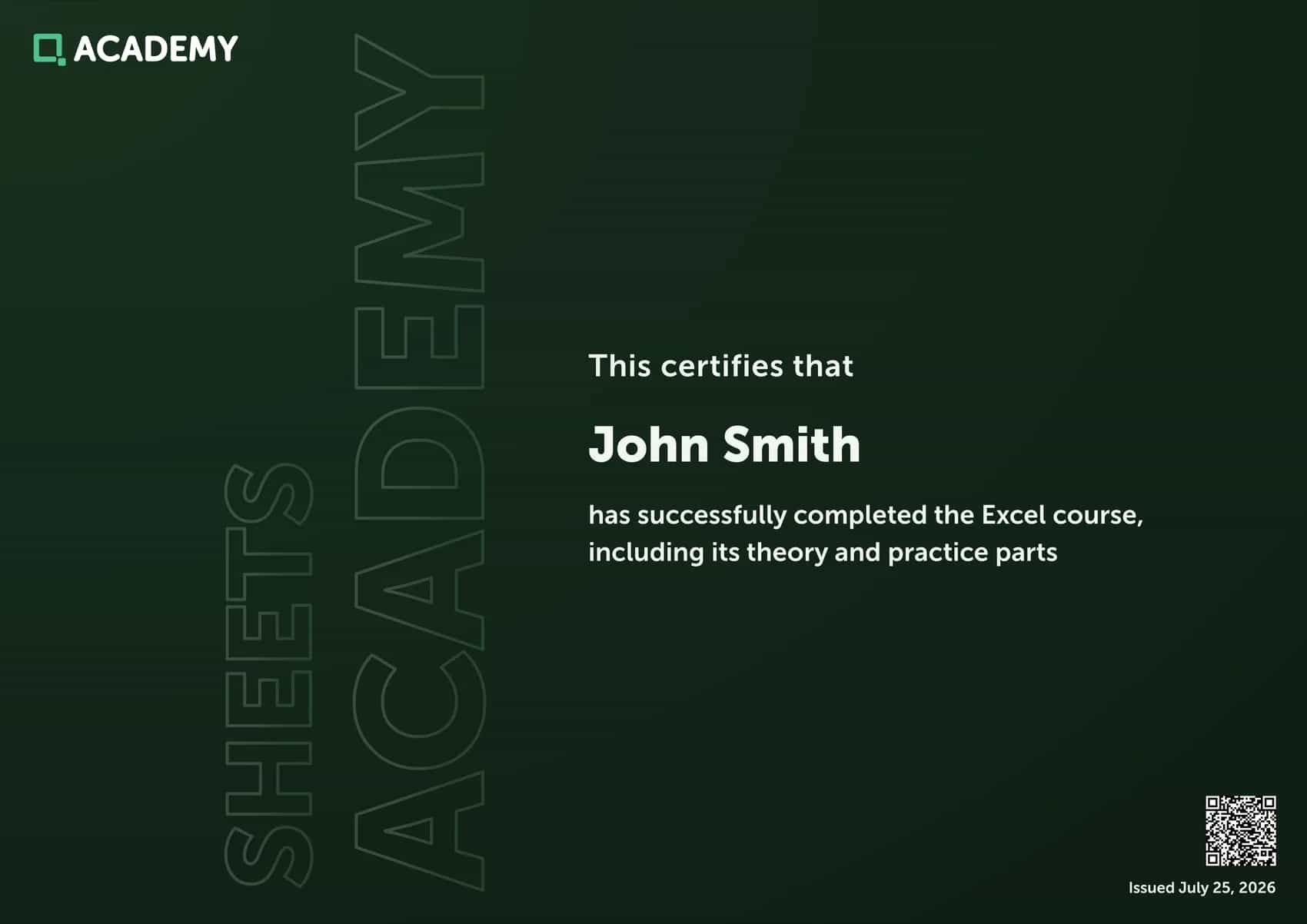
The certificate shows that you can solve practical Excel tasks on your own. You can add it to your résumé or portfolio, and anyone can check that it's genuine with a public link.
The certificate unlocks after 30 tasks solved on your own in the trainer. Tasks where you looked at the solution don't count. The progress bar on the trainer page shows how many are left.
You can issue the certificate with a Premium account. Tasks solved before you buy it count too. Your profile needs a first and last name: they go on the certificate. Once issued, the certificate stays in your profile even after Premium ends, and you can open it by link or download it as a PDF.
Good to know
- Names match Excel. Tabs, menus and buttons in the course have the same names as in Excel. Whatever you learn here, you can do in the real program.
- Try it on your computer. Open a sheet in the sandbox, download it as an .xlsx file and open the file in Excel.
- AI assistant. Select any text on the page you find unclear, and a Clarify button appears with an extra explanation. If the check finds a mistake in your task, the assistant explains what caused it. It's available to registered users.
- A computer works better. A table is easier to handle with a mouse and keyboard. The course opens on a phone too, but some features are limited there.
Start with the next lesson: it shows what a sheet is made of and how to find the cell you need.